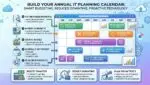


Most businesses should plan to replace their servers and workstations on a predictable schedule, typically every 4 to 6 years for servers and every 3 to 5 years for workstations. The right timing depends on performance needs, security requirements, warranty coverage, and the cost of downtime. This guide helps you set a refresh cycle that reduces risk while keeping budgets stable.
Why replacement timing matters
Hardware is a business risk and a productivity tool. As servers and endpoints age, failure rates rise, vendor support narrows, and security exposure increases due to firmware and driver limitations. Replacement timing is also a financial decision: predictable refresh cycles usually cost less than emergency replacements triggered by outages, rushed procurement, or unplanned migration work.
In distributed operations, timing becomes even more important. A multi-site business in the United States, for example, may need to coordinate refreshes across New York, Chicago, Dallas, and Seattle to avoid disrupting regional teams and to reduce shipping delays. In the United Kingdom, organizations with locations in London and Manchester may want to schedule upgrades around peak trading periods and planned office moves.
Typical replacement cycles: practical baseline
These ranges are common starting points. Your environment may justify shorter or longer cycles.
Servers: 4 to 6 years for most organizations
Many small and mid-sized businesses replace physical servers around year 5. The sweet spot is often after the initial warranty period but before reliability drops and parts become harder to source. If your server runs critical line-of-business applications, virtualization clusters, databases, or identity services, a 4 to 5 year cycle is a safer target, especially if uptime requirements are strict.
Workstations: 3 to 5 years depending on role
Standard office desktops and laptops often last 4 to 5 years, while high-demand roles like CAD, video production, data analytics, and software development may need a 3 to 4 year cycle to keep performance consistent. Frontline and kiosk systems can sometimes stretch longer if tightly locked down, but compatibility and security updates become limiting factors.
Network and storage gear: align with server refreshes
Switches, firewalls, wireless access points, and storage arrays have different lifespans, but they should not be ignored. It is often efficient to align major network and storage upgrades with server refreshes so bandwidth, port speeds, and security capabilities keep pace. For example, moving to faster Wi-Fi standards or higher-speed switching may be necessary when adding new endpoints or expanding video collaboration.
Key factors that determine when to replace hardware
Replacement timing should be based on measurable business and technical drivers rather than a calendar alone.
1) Warranty status and vendor support
Once standard warranty ends, repair costs and downtime risk increase. Extended warranties can help, but they may not cover everything you need, and next-business-day replacement can still be too slow for revenue-critical systems. Also consider vendor lifecycle dates: if your server model or workstation platform is no longer supported for BIOS, firmware, or drivers, security and stability suffer.
2) Performance ceilings and user experience
Slow logins, long compile times, lagging virtual desktops, and sluggish file access are not just annoyances. They translate into labor cost. A good way to quantify this is to estimate time lost per employee per day and multiply by fully loaded hourly rates. If performance limitations are costing more than the annualized cost of new hardware, replacement is justified.
3) Security requirements and compliance
Security standards evolve quickly. Older devices may not support modern encryption, secure boot, TPM requirements, or advanced endpoint protection features. For regulated industries, compliance frameworks and cyber insurance requirements may effectively force a faster cycle. If your security team cannot apply firmware updates reliably or your systems cannot run current operating systems, it is time to replace their servers and workstations sooner.
4) Operating system and application compatibility
When a major OS reaches end of support, the upgrade path may require newer CPUs, TPM modules, or driver support that older devices lack. The same is true for line-of-business applications that require newer database versions, web servers, or runtime components. Your refresh plan should be anchored to OS and application roadmaps, not only hardware age.
5) Virtualization and cloud strategy
If you are shifting workloads to cloud services, you may reduce server footprint and extend certain on-prem investments, but it does not eliminate the need for endpoint refresh. Conversely, if you are building a hybrid environment, you may need newer servers to support modern hypervisors, container platforms, and backup tooling. A clear workload placement plan helps you decide whether to replace, consolidate, or retire systems.
Signs you should replace earlier than planned
A scheduled refresh cycle is useful, but exceptions are normal. Consider accelerating replacement when you see:
- Rising hardware alerts: disk SMART warnings, memory errors, increasing fan failures, or power supply issues
- Frequent crashes or unplanned reboots, especially on domain controllers, database servers, or virtualization hosts
- Parts scarcity or long lead times, which can be common for older models
- Inability to run supported OS versions or security tools
- Noticeable productivity drag in key departments, such as finance during month-end close
- High energy use and heat output compared with newer, more efficient hardware
Replacement planning: a simple, budget-friendly model
The most sustainable approach is a rolling refresh program. Instead of replacing everything at once every five years, you replace a portion each year. This smooths spending, reduces migration spikes, and keeps standard images and spare parts manageable.
Step 1: Inventory and classify
Maintain an asset inventory with purchase date, warranty expiration, location, owner, and criticality. Add performance tiers for workstations. Include remote staff, since shipping logistics can vary by geography. For example, organizations with staff across Canada may want regional spare pools in Ontario and Alberta to avoid long shipping delays in winter months.
Step 2: Set target lifecycles by tier
Use tiers such as: servers (mission critical) 4 years, servers (standard) 5 to 6 years; workstations (power users) 3 years, workstations (standard) 4 to 5 years. Your tiers should reflect business roles and acceptable downtime.
Step 3: Align with warranty and support windows
Time replacements so migrations happen before end-of-support milestones. That reduces the number of devices running unsupported software. It also avoids paying for extended warranty while simultaneously carrying elevated risk from older components.
Step 4: Standardize and automate deployment
Standard workstation models and a small number of server configurations make imaging, patching, and spare management simpler. Use automated deployment tools for endpoints and infrastructure-as-code or scripted provisioning for servers. Standardization also helps when opening new offices or relocating teams, such as expanding from San Francisco to Austin or from Dublin to Cork.
Step 5: Plan data migration, backups, and cutovers
For servers, replacement is usually a migration, not a lift-and-shift of old disks. Confirm backup health, test restores, and document rollback plans. Schedule cutovers during low-usage windows, considering local time zones and peak periods. For workstations, use profile migration and cloud storage policies to minimize user disruption.
Server replacement: on-prem, hybrid, and cloud considerations
Physical server replacement typically involves one of three paths: replace with new on-prem hosts, move workloads to cloud services, or build a hybrid approach. On-prem replacement often makes sense for latency-sensitive apps, local file services, specialized equipment integration, or data residency requirements. Cloud migration can reduce hardware churn but shifts costs to subscription and requires solid identity, networking, and monitoring.
Hybrid is common for businesses with multiple sites and compliance needs. For example, a healthcare provider with clinics across Florida may keep imaging systems on-prem while moving email and collaboration to cloud services. In that model, you still need to replace their servers and workstations on a cadence, but the server fleet may shrink and become more standardized.
Workstation replacement: productivity, security, and remote work
Workstations are often replaced more frequently than servers because user expectations and security requirements change rapidly. Remote work also increases wear on laptops and raises the cost of failure. A laptop that dies during a client presentation or a sales trip is more than a repair ticket. It can cause lost revenue and reputational damage.
Consider keeping a small buffer of ready-to-deploy laptops in each major region where you have staff. If your workforce spans the European Union, for instance, having spares within the Schengen Area can simplify logistics and reduce downtime. For the United States, spares staged near major hubs can speed replacements during weather events or shipping disruptions.
Cost management: making the business case
To justify refresh cycles, compare the total cost of ownership across three categories: purchase and licensing, support and operations, and downtime risk. Include IT labor for troubleshooting aging devices, higher power consumption, and the opportunity cost of slow performance. A clear model helps leadership see why planned replacement is cheaper than reactive replacement.
Also consider residual value and secure disposal. Some organizations recoup costs through buyback programs or resale, while others prioritize certified data destruction and responsible recycling. Either way, build asset retirement into your timeline so old equipment does not linger unpatched or unmanaged.
Recommended refresh cadence summary
- Servers: Replace every 4 to 6 years, sooner for mission-critical workloads or unsupported platforms.
- Workstations: Replace every 3 to 5 years, sooner for power users and high-security environments.
- Plan annually: Use a rolling refresh program tied to warranty, OS support, and workload strategy.
A disciplined refresh program is not about buying new equipment for its own sake. It is about controlling risk, supporting secure operations, and giving teams the performance they need to serve customers reliably. If you create tiered lifecycles, track assets carefully, and schedule migrations before support deadlines, you can replace their servers and workstations with minimal disruption and a predictable budget year after year.
Frequently Asked Questions
Is it better to replace servers on a schedule or only when they fail?
Is it better to replace servers on a schedule or only when they fail?
A schedule is usually better because it reduces downtime risk and avoids rushed migrations. If you replace their servers and workstations predictably, you can align upgrades with warranty windows, OS support dates, and planned maintenance periods. Break-fix replacement often costs more due to emergency labor, expedited shipping, and unplanned business interruption.
How do I know if my workstations need replacement sooner than 5 years?
How do I know if my workstations need replacement sooner than 5 years?
Measure real impacts: slow boot times, long app launches, frequent crashes, and inability to run supported OS versions or security tools. If these issues affect key roles, it is often cheaper to replace their servers and workstations earlier than to absorb productivity loss. Compare upgrade cost against hours lost per employee per month.
Can moving to the cloud eliminate the need for server replacement?
Can moving to the cloud eliminate the need for server replacement?
Cloud can reduce on-prem server count, but it rarely eliminates hardware refresh entirely. You may still need local identity services, networking, backup appliances, or edge systems. Even with cloud-first operations, you must replace their servers and workstations on a cadence because endpoints remain critical for security and productivity.
What is the safest way to replace a critical server with minimal downtime?
What is the safest way to replace a critical server with minimal downtime?
Treat it as a migration project: validate backups, test restores, build the new server in parallel, and plan a cutover with rollback steps. Use staged data replication where possible. When you replace their servers and workstations this way, downtime is controlled and you avoid carrying configuration errors forward.
How should businesses handle old hardware after replacement?
How should businesses handle old hardware after replacement?
Use a documented retirement process: remove from management tools, wipe data using approved methods, and obtain certificates of destruction or recycling. Track asset tags and chain of custody, especially for regulated data. When you replace their servers and workstations, secure disposal prevents data leakage and reduces audit risk.