

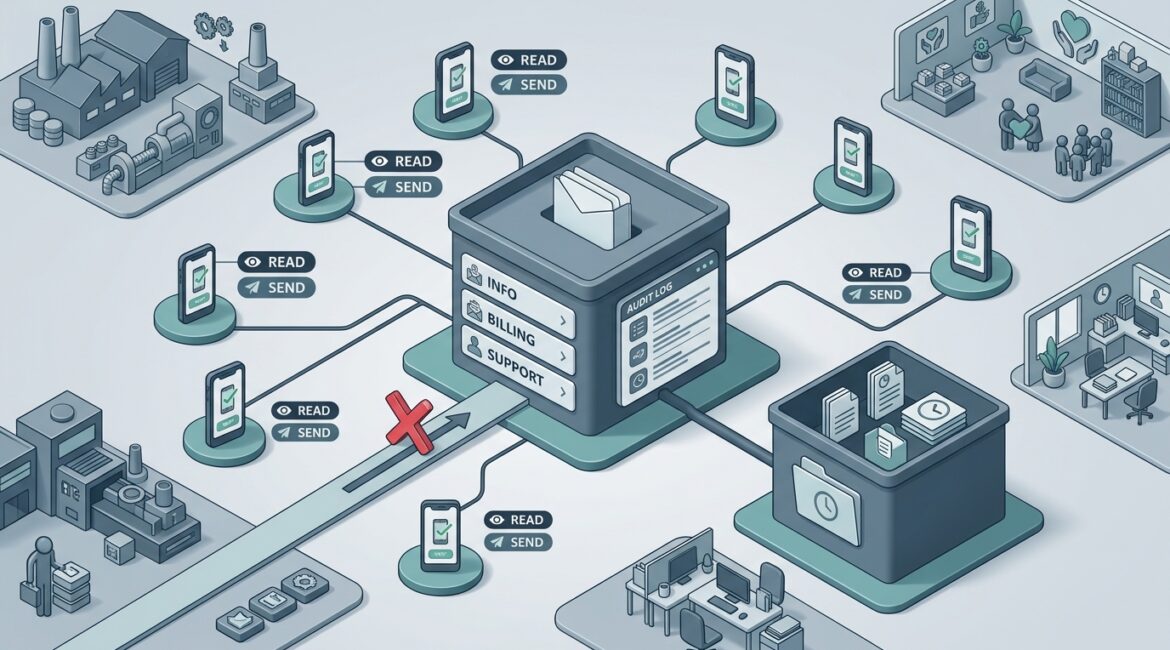
Businesses should secure shared mailboxes in Microsoft 365 by avoiding shared logins, assigning access to named users, requiring strong sign-in protections, limiting permissions, and reviewing activity regularly. A shared mailbox can be useful for accounts like info@, billing@, or donations@, but if it is set up casually, it can create a very real security and accountability problem.
For most organizations, the goal is simple: make shared email easy for the right people to use without turning it into an unmonitored back door. That balance matters whether you run a manufacturer in Southeast Wisconsin, a nonprofit in Kenosha, or a professional services firm with staff across Northeast Illinois.
Why shared mailboxes need extra attention
A shared mailbox is different from a personal inbox. Several people may read messages, reply to customers, process invoices, or handle donor communications from the same address. That convenience is helpful, but it also increases the chance of mistakes, unauthorized access, and confusion about who did what.
Many businesses assume a shared mailbox is low risk because it often does not have a separate password. In reality, the risk usually comes from the user accounts that can access it. If one employee account is compromised, the attacker may gain access to every shared mailbox that person can open.
That can affect operations quickly. Imagine a finance team member with access to accountspayable@ has their Microsoft 365 account phished. An attacker could read vendor conversations, send fraudulent payment instructions, and delete responses before anyone notices. A single incident can lead to direct financial loss, hours of cleanup, and damaged trust with vendors or clients.
The most important rule: never use a shared password
If several people need access to one mailbox, do not solve that problem by having everyone sign in with the same username and password. That setup removes accountability and makes it much harder to protect the account with modern identity controls.
Instead, use a true Microsoft 365 shared mailbox and grant access to individual employee accounts. Each person signs in as themselves, and Microsoft 365 allows them to open the shared mailbox based on assigned permissions.
This gives your business several advantages:
- Clear accountability because access is tied to named users
- Faster offboarding when an employee leaves
- Better security through multifactor authentication on each user account
- Cleaner audits when reviewing access and activity
If your organization still has any shared Microsoft 365 accounts in use, this is worth addressing. Our related article on how to protect shared Microsoft 365 accounts the right way covers why shared credentials create long-term risk.
Assign the right permissions, not full access for everyone
Not every employee who touches a shared mailbox needs the same level of control. Microsoft 365 allows different permission levels, and businesses should use them thoughtfully.
Common permission types
- Read and manage for staff who need to open and organize messages
- Send as for users who should send email that appears to come directly from the shared mailbox
- Send on behalf for cases where recipients should see that a specific employee sent the message on behalf of the mailbox
A law firm, for example, may allow administrative staff to monitor intake@ and route inquiries, while only a smaller group can send replies. A nonprofit may let development staff read donations@, but only finance leadership can manage messages tied to recurring donor payments. A manufacturer may give customer service full access to orders@ while limiting who can change mailbox rules or forwarding settings.
When access is broader than necessary, the risk goes up. So does the chance of accidental deletion, missed messages, and inconsistent responses.
Protect the user accounts that open the mailbox
The shared mailbox itself depends on the security of the employee accounts connected to it. That means your real protection starts with identity management.
At a minimum, businesses should require:
- Multifactor authentication for every user with access
- Strong conditional access policies when appropriate
- Blocked sign-ins from former employees immediately at termination
- Regular access reviews to remove users who no longer need it
- Managed devices for staff handling sensitive email
For organizations that rely heavily on Microsoft 365, identity controls are one of the highest-value improvements you can make. If you want a practical overview, see our post on using Microsoft Entra ID to improve business security.
This is especially important for mailboxes tied to money, contracts, HR matters, or donor records. If a controller, office manager, or executive assistant has access to several sensitive mailboxes, that account deserves extra attention.
Watch for forwarding rules, suspicious logins, and unusual behavior
One of the most common email-related security issues is unauthorized forwarding. An attacker who gains access may create a hidden rule that sends copies of messages to an outside address. In some cases, they quietly monitor conversations for weeks before attempting fraud.
Businesses should review and monitor:
- Automatic forwarding rules
- Mailbox delegation changes
- Unusual sign-in locations
- Large numbers of deleted messages
- Unexpected outbound messages
A professional services firm might not notice a problem until a client says, “We already replied to that.” A nonprofit may discover donor questions were never answered because messages were redirected. A manufacturing company may lose production time if vendor order confirmations disappear from a shared inbox used by purchasing.
Even a short disruption matters. If a five-person customer service team loses access to a key mailbox for half a day, the cost is not only IT time. It can mean delayed quotes, missed orders, frustrated customers, and overtime spent catching up.
Set retention and recovery rules before you need them
Shared mailboxes often contain business records people assume will always be there. Unfortunately, messages can be deleted intentionally or by accident.
That is why retention and recovery planning matters. Your business should decide how long email needs to be kept, who can delete it, and how recovery will work if something goes wrong.
Good questions to answer in advance
- Is this mailbox used for financial approvals or vendor records?
- Does it contain donor, client, legal, or HR communications?
- Do messages need to be retained for compliance or operational reasons?
- Who is allowed to purge deleted items?
- Do we have backup or recovery options beyond default recycle bins?
This is one place where proactive planning pays off. Our article on how to reduce the risk of accidental data deletion explains why retention and recovery should be treated as business decisions, not just technical settings.
Create a simple policy for shared mailbox use
Most shared mailbox problems are not caused by advanced attackers. They come from unclear ownership, inconsistent processes, and access that was never cleaned up.
A short written policy can solve a lot of that. It does not need to be complicated, but it should define:
- Who owns each shared mailbox
- Which team members are approved for access
- What the mailbox is used for
- Whether sensitive information can be sent through it
- How often access is reviewed
- What happens when an employee changes roles or leaves
For example, a Kenosha nonprofit may assign development leadership as the owner of donations@ and require quarterly access reviews. A CPA firm may designate a partner or operations manager as the owner of taxdocuments@ and require encrypted delivery for certain files. A regional manufacturer may make customer service responsible for service@ while IT reviews permissions every quarter.
Do not forget encryption and data sensitivity
Some shared mailboxes handle routine scheduling. Others handle account numbers, tax documents, protected client information, or donor payment questions. Those messages may need additional protection.
If a shared mailbox is used to send or receive sensitive content, review whether secure email encryption should be part of the process. Not every message needs it, but some clearly do. That decision should be based on the type of data involved, not guesswork.
For a deeper look, read what secure email encryption is and when businesses should use it.
A practical shared mailbox security checklist
If you want a straightforward starting point, use this checklist:
- Use Microsoft 365 shared mailboxes, not shared passwords
- Grant access only to named users who need it
- Require multifactor authentication for all users with access
- Limit send and admin permissions carefully
- Review mailbox rules and forwarding regularly
- Monitor sign-ins and suspicious activity
- Set retention and recovery policies
- Document mailbox ownership and review access on a schedule
- Use encryption when sensitive information is involved
Secure shared mailboxes as part of a larger Microsoft 365 plan
Shared mailbox security should not be treated as a one-off task. It works best when it is part of a broader Microsoft 365 governance and security plan that covers identity, access, retention, monitoring, and recovery.
That is where many organizations benefit from an outside review. A mailbox may appear to be working fine while hidden risks build up in permissions, stale accounts, forwarding rules, or missing retention settings. Those issues are much easier to fix during planned maintenance than during a fraud investigation or outage.
If you’re ready to strengthen your technology, reduce risk, and plan for the future, contact Platinum Systems to schedule a technology strategy discussion.
Platinum Systems helps businesses across Southeast Wisconsin and Northeast Illinois make practical security decisions that support daily operations. If you would like guidance on securing shared mailboxes, improving Microsoft 365 controls, or reviewing email risk across your organization, contact Platinum Systems.